> ## Documentation Index
> Fetch the complete documentation index at: https://docs.octen.ai/llms.txt
> Use this file to discover all available pages before exploring further.
# Connect Desktop AI Assistants
There are two ways to give a desktop AI assistant access to Octen:
* **MCP** — Model Context Protocol. The app runs a small local server via `npx`, so it needs Node.js on your machine.
* **Octen skills** — Agent Skills standard. The app runs it directly; when the app executes skills in a hosted sandbox, that's ideal if you don't have Node.
This guide uses Claude Desktop as the example. Any other desktop assistant that supports MCP or Skills standard connects in a similar ways.
## MCP
### Before you start
* An **Octen API key** ([API Platform](https://octen.ai/platform/api-keys)).
* Claude Desktop
* Node.js 18+ — the server runs via `npx`.
In Claude Desktop, open **Settings → Developer**, then click **Edit Config** to open `claude_desktop_config.json`.
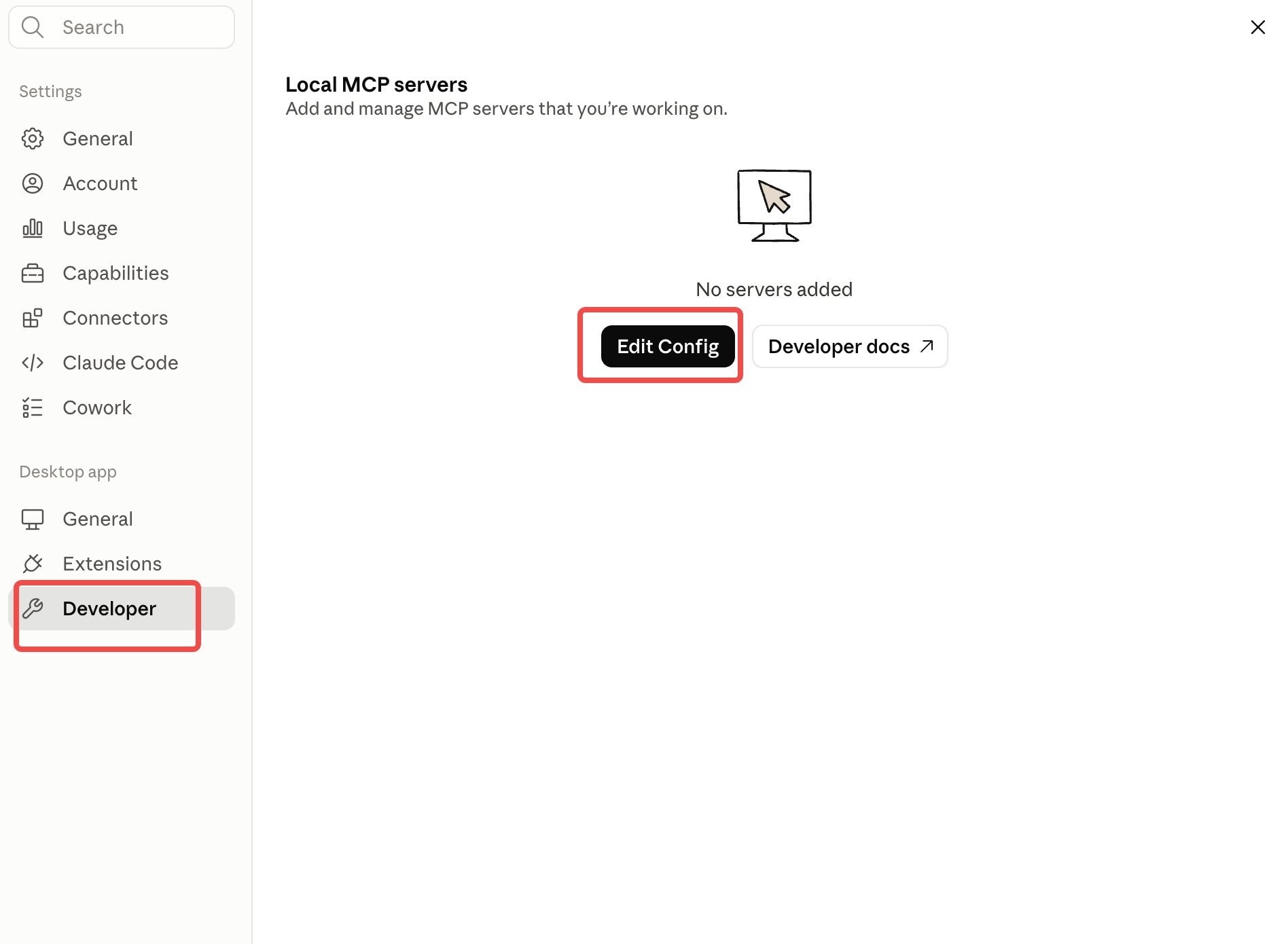 Add `octen` under `mcpServers`, with your key in `env`:
```json theme={null}
{
"mcpServers": {
"octen": {
"command": "npx",
"args": ["-y", "octen-mcp"],
"env": {
"OCTEN_API_KEY": "your-key-here"
}
}
}
}
```
Merge this into the file — don't replace it. `mcpServers` may already exist (often empty: `"mcpServers": {}`), and the file may hold other settings. Keep them all — just put the `octen` block inside the existing `mcpServers`.
Save the file, then fully quit and reopen Claude Desktop.
Check either place:
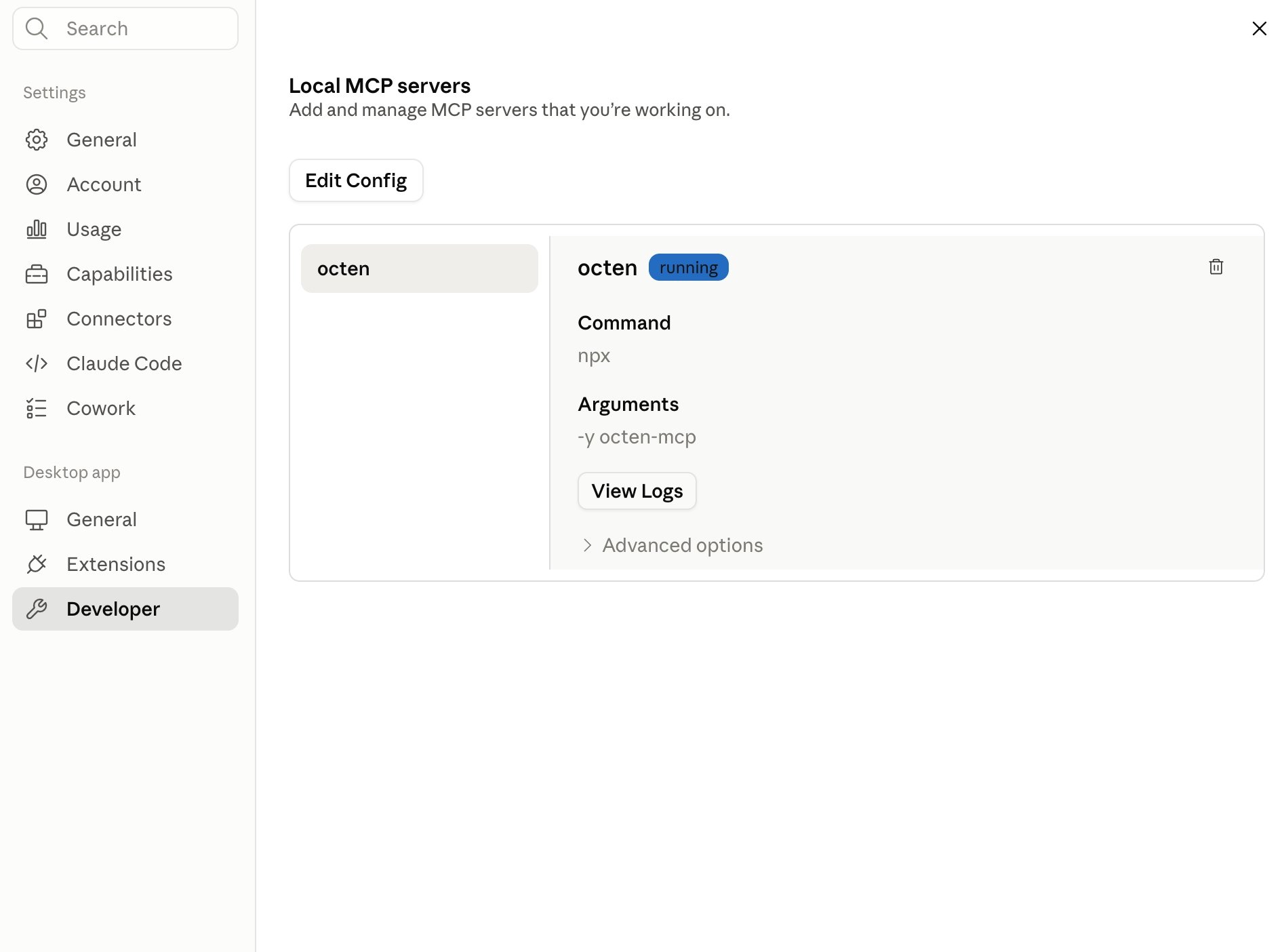
* Settings → Developer → Local MCP servers — `octen` shows a running badge.
* In a chat, click the **+** button → Connectors and make sure **octen** is toggled on.
Add `octen` under `mcpServers`, with your key in `env`:
```json theme={null}
{
"mcpServers": {
"octen": {
"command": "npx",
"args": ["-y", "octen-mcp"],
"env": {
"OCTEN_API_KEY": "your-key-here"
}
}
}
}
```
Merge this into the file — don't replace it. `mcpServers` may already exist (often empty: `"mcpServers": {}`), and the file may hold other settings. Keep them all — just put the `octen` block inside the existing `mcpServers`.
Save the file, then fully quit and reopen Claude Desktop.
Check either place:
* Settings → Developer → Local MCP servers — `octen` shows a running badge.
* In a chat, click the **+** button → Connectors and make sure **octen** is toggled on.
 ## Octen skills
Octen offers several skills — this guide installs `octen-search` as an example. You add any other Octen skill the same way.
### Before you start
* An **Octen API key** ([API Platform](https://octen.ai/platform/api-keys)).
* Code execution enabled in Settings → Capabilities (available on Free, Pro, and Max; in an organization, an admin enables it in org settings).
Open Settings → Capabilities and turn on Code execution and file creation, then turn on Allow network egress.
Network egress defaults to package managers only, so the calls to Octen stay blocked until you allow its domain — add `*.octen.ai` to the allowed domains.
Who can add the domain depends on your plan. On Pro / Max you add it yourself. On Team / Enterprise an admin adds it in Organization settings → Capabilities. Free plans can't add custom domains — use MCP instead.
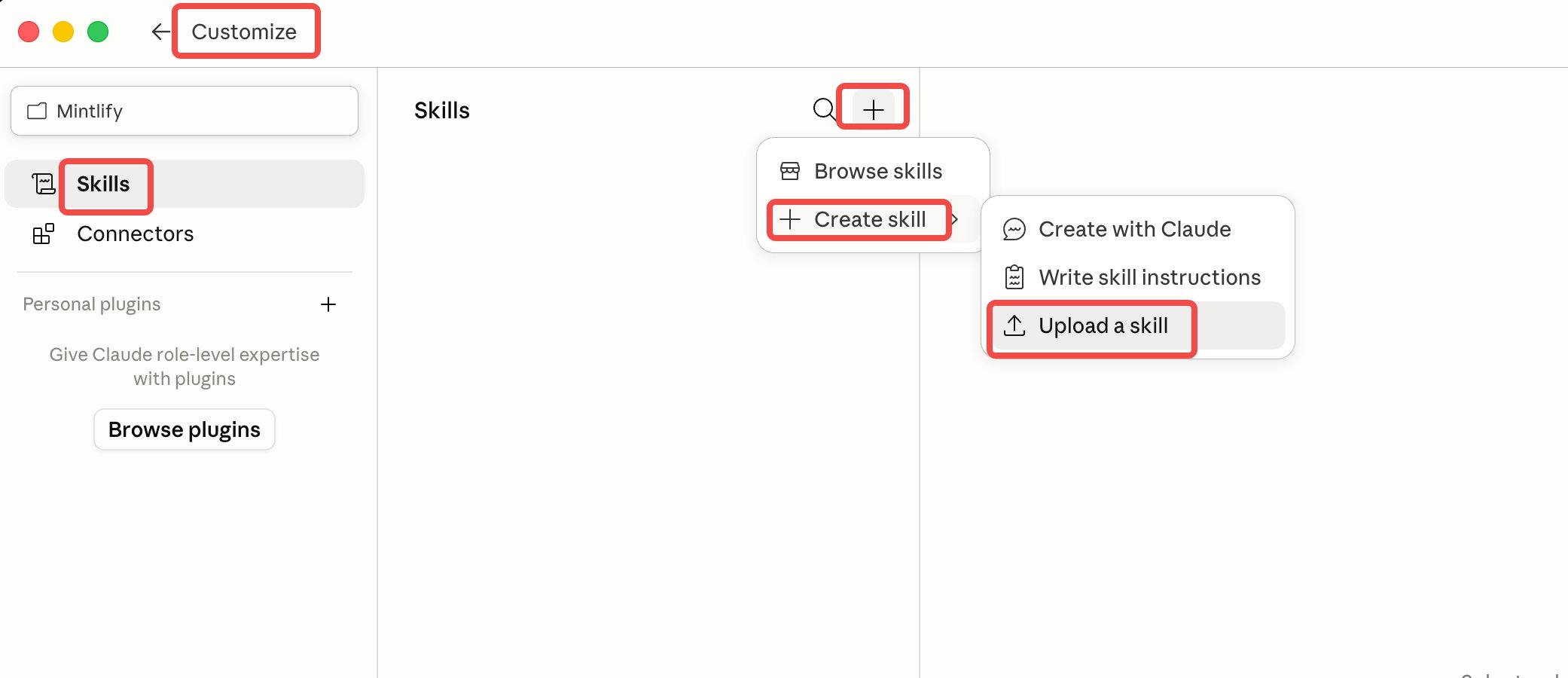
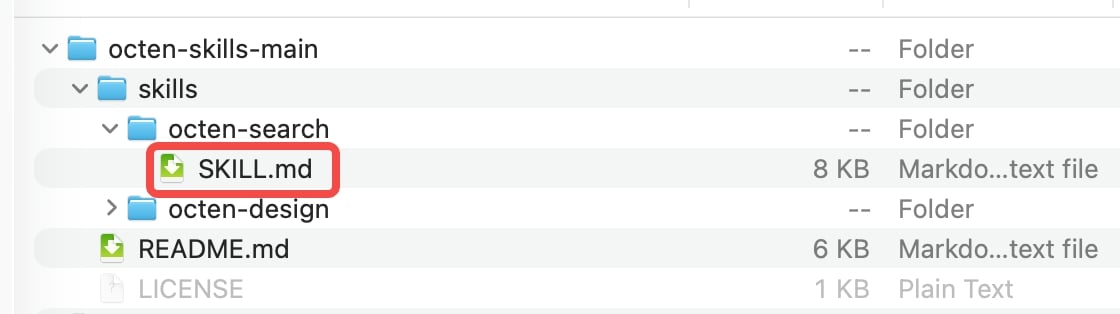
Download `octen-search.zip` from the [octen-skills repo](https://github.com/Octen-Team/octen-skills) and unzip it. Open Customize → Skills, click the **+** at the top of the list, then choose Create skill → Upload a skill and select `skills/octen-search/SKILL.md`.
## Octen skills
Octen offers several skills — this guide installs `octen-search` as an example. You add any other Octen skill the same way.
### Before you start
* An **Octen API key** ([API Platform](https://octen.ai/platform/api-keys)).
* Code execution enabled in Settings → Capabilities (available on Free, Pro, and Max; in an organization, an admin enables it in org settings).
Open Settings → Capabilities and turn on Code execution and file creation, then turn on Allow network egress.
Network egress defaults to package managers only, so the calls to Octen stay blocked until you allow its domain — add `*.octen.ai` to the allowed domains.
Who can add the domain depends on your plan. On Pro / Max you add it yourself. On Team / Enterprise an admin adds it in Organization settings → Capabilities. Free plans can't add custom domains — use MCP instead.
Download `octen-search.zip` from the [octen-skills repo](https://github.com/Octen-Team/octen-skills) and unzip it. Open Customize → Skills, click the **+** at the top of the list, then choose Create skill → Upload a skill and select `skills/octen-search/SKILL.md`.
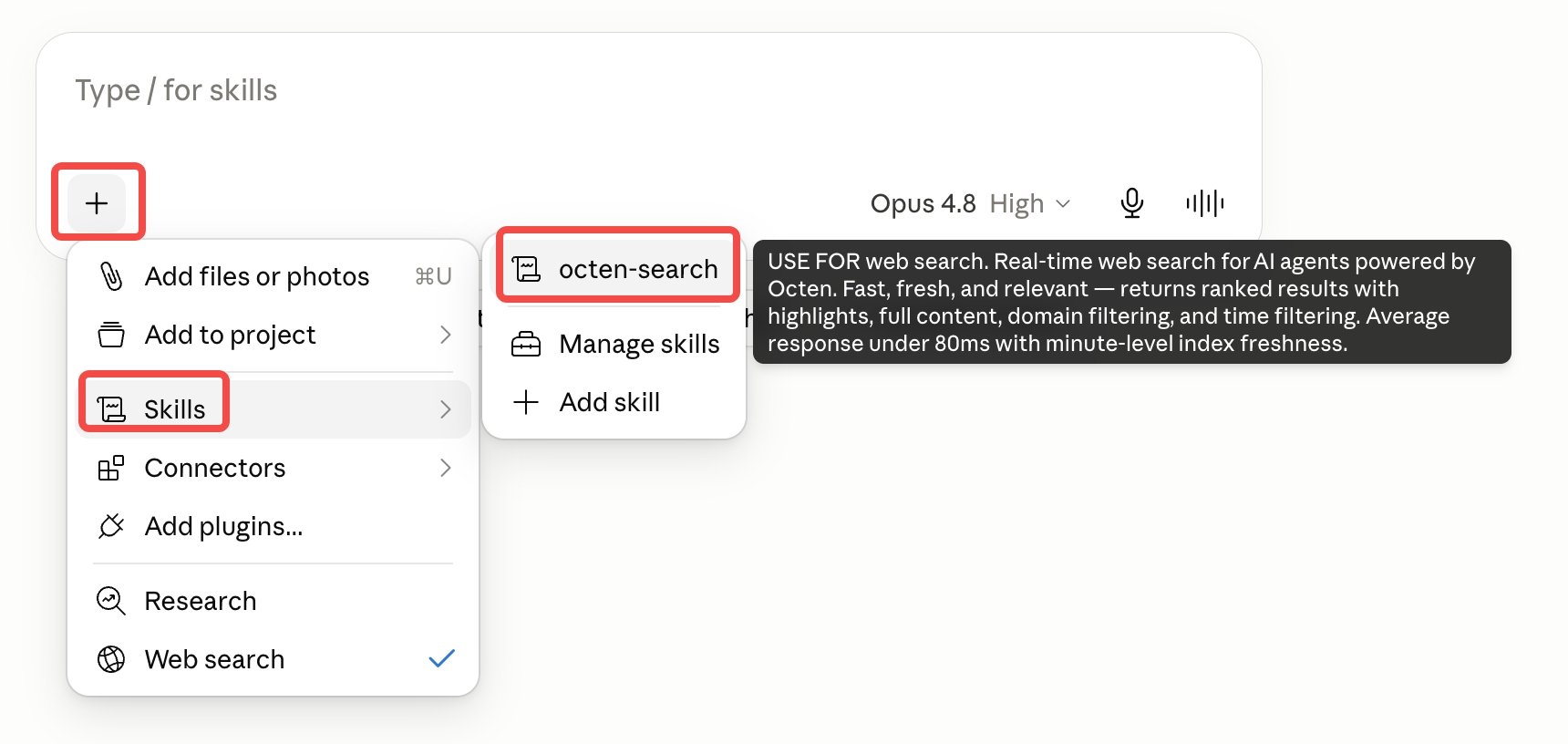
 In a new chat, click the **+**, choose Skills, and select octen-search to turn it on for the conversation.
 This skill reads your key from OCTEN\_API\_KEY — add it as an environment variable, or provide your Octen API key when the skill asks for one.
## Try it
Ask the assistant something that needs the live web:
* *Search the web for daily news and summarize the top three.*
## Troubleshooting
| Symptom | Fix |
| ----------------------- | --------------------------------------------------------------------------------------------------------------- |
| MCP tools don't appear | Fully quit and reopen the app; confirm the MCP config is valid JSON. |
| `spawn npx ENOENT` | Node isn't installed or isn't on the app's PATH — install Node, or put the absolute path to `npx` in `command`. |
| Skill can't reach Octen | Network is blocked. Check Enable code execution and allow Octen's domain part or use MCP instead |
This skill reads your key from OCTEN\_API\_KEY — add it as an environment variable, or provide your Octen API key when the skill asks for one.
## Try it
Ask the assistant something that needs the live web:
* *Search the web for daily news and summarize the top three.*
## Troubleshooting
| Symptom | Fix |
| ----------------------- | --------------------------------------------------------------------------------------------------------------- |
| MCP tools don't appear | Fully quit and reopen the app; confirm the MCP config is valid JSON. |
| `spawn npx ENOENT` | Node isn't installed or isn't on the app's PATH — install Node, or put the absolute path to `npx` in `command`. |
| Skill can't reach Octen | Network is blocked. Check Enable code execution and allow Octen's domain part or use MCP instead |